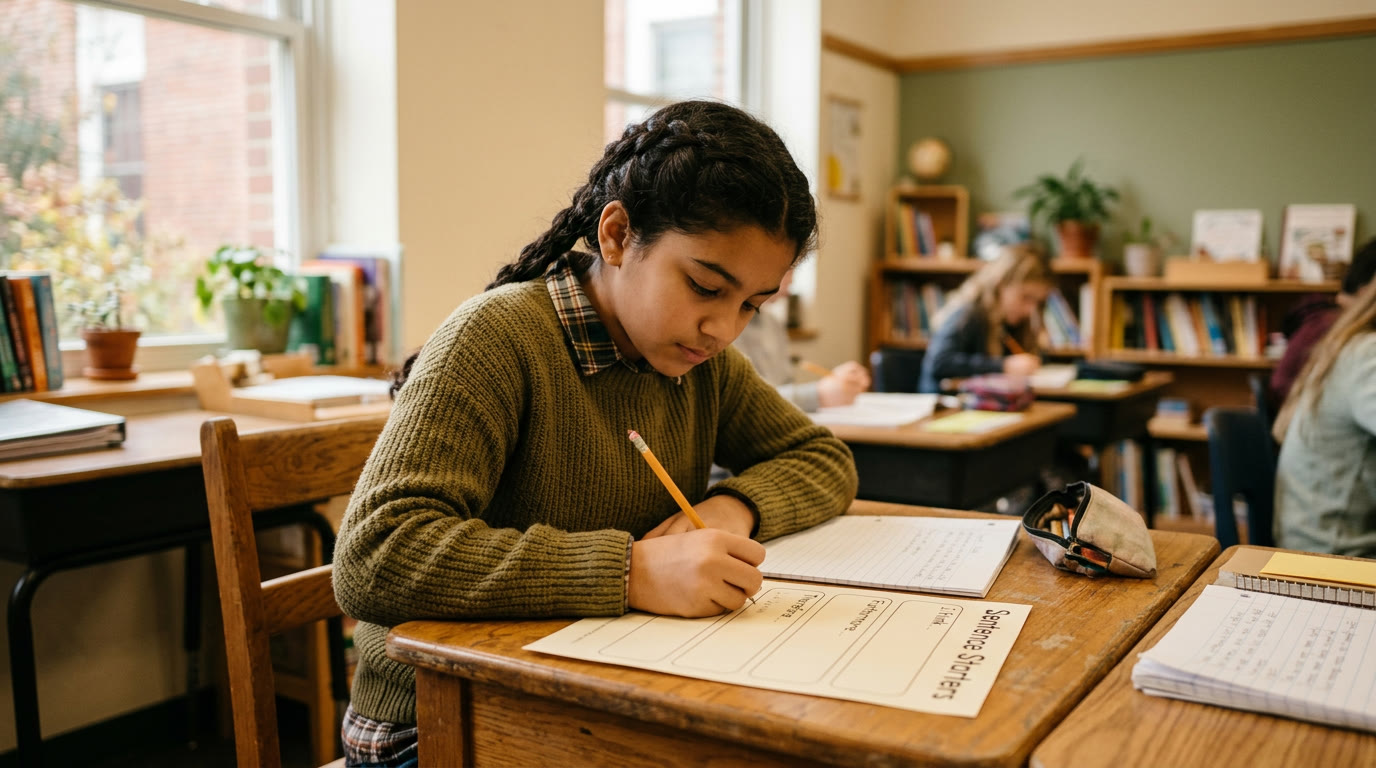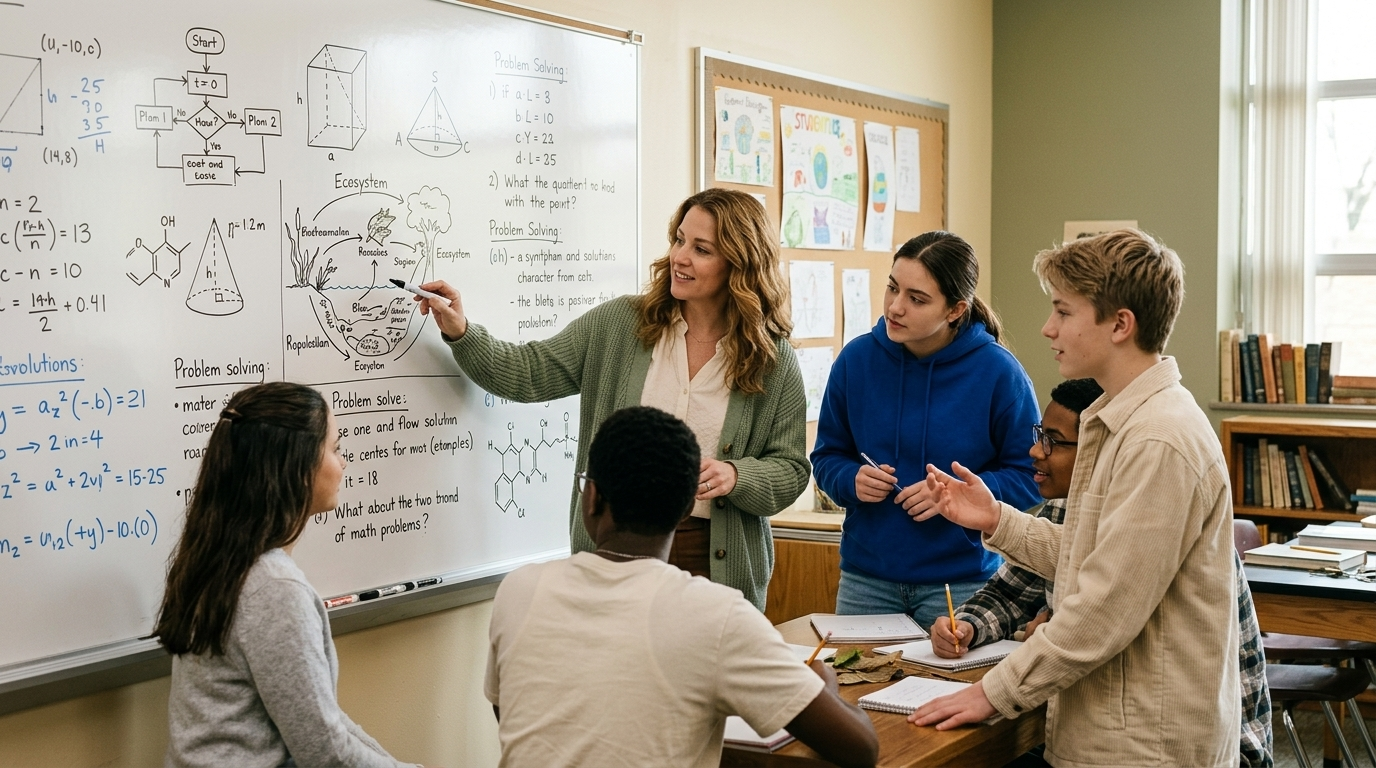
2:15 PM on a Tuesday. You're 10 minutes into the lesson. You've got 25 kids watching the screen. You try to load the AI tool.
It's down.
You have 15 seconds before the energy in the room shifts. Here's what you actually do.
The backup plan every teacher needs
You need one low-tech thing you can do right now with zero WiFi.
For brainstorming: Have 3–5 printed examples from previous years. "We can't load ChatGPT, so we're doing what writers have done forever, looking at examples and remixing them."
For editing: Have a paragraph on the board (written beforehand) with errors. "AI's down, but this paragraph has three problems. What would you fix?" Circle one together, kids tell you why.
For problem-solving: Ask the question you were going to give to the AI. "Here's what we were going to ask the AI tool. What would *you* try first?" Solve it on the board together.
Your backup isn't "cancel the lesson." It's "remove the technology, keep the thinking."
The WiFi failure (the most common one)
This isn't the AI tool's fault. It's your school's network dying because 30 devices just hit it.
Signs:
- One student loads fine, three others don't
- It loaded yesterday but not today
- It loads on phone hotspot but not school WiFi
What to do right now:
1. Try once from your teacher account (on your device)
2. If it works, your WiFi is just congested. Say: "We're going to stagger our login so the network doesn't crash. Group 1 goes first, Group 2 waits, Group 3 waits. You have 5 minutes each."
3. If *your* account doesn't load, the service is actually down or blocked by your school. Say: "The tool's not available right now. Here's what we're doing instead." (See backup plans above.)
That's it. You sound calm. You have a plan. Kids feel okay.
The setup that buys you time
Before you need it, do this:
Digital backup:
- Bookmark a 2-minute video showing what the AI tool does (from the tool's own website)
- Download a PDF example of AI output from the tool (so you can show it even offline)
- Screenshot three pieces of sample student work from last year
Physical backup:
- Print 5 examples of [whatever you were going to generate with AI]
- Write one example prompt on a notecard so you remember what you were asking for
- Have pencils and paper ready (not rhetorical, actually have them)
Store these in a folder on your desk. When the tool goes down, you reach for that folder and move on.
Teaching kids to roll with failure
When a tool fails, say it out loud: "Technology fails sometimes. That's why we learn how to solve problems without it too."
Then ask: "What would you do if you didn't have this tool?" And solve it that way.
Kids learn two things:
1. Problems don't require technology
2. Failure is solvable
That's more valuable than the lesson itself.
The parent context (just in case)
If parents ask why the lesson changed: "Our AI tool was unavailable today, so we adapted the lesson. Kids still learned the concept, we just used a different method."
You're not apologizing. You're explaining. Teachers use tools. Tools fail. Teachers adapt.
The lesson that survived
Here's what actually happens:
1. Tool doesn't load (1 minute)
2. You notice, say "we've got a plan" (5 seconds)
3. You reach for your backup folder (10 seconds)
4. You pull out 5 printed examples (5 seconds)
5. You restart: "Here's what ChatGPT would have generated if it was working. Let's see if you can do better." (2 minutes)
6. Rest of lesson proceeds with your backup (28 minutes)
End of story. No drama. Kids learned. You stayed in control.
Have the folder ready. The rest is easy.